Listing Management
Overview
This guide discusses the use cases involved in managing active eBay listings, and touches on revising listings, relisting items, retrieving listings, and ending listings.
API Use Case
Revising listings
Relisting items
Retrieving listings
Ending listings
End and publish a single-SKU listing
End and publish a variation listing
Revising listings
The Inventory API, the Trading API, and the Sell Feed API can all be used to revise active listings. The required steps vary with each of these APIs, so they will be covered individually below. Regardless of the API used, active listings can only be revised a maximum of 250 times per calendar day.
Revising product details with the Inventory API
The flow diagram below provides a visual representation of how to revise product details using the Inventory API:
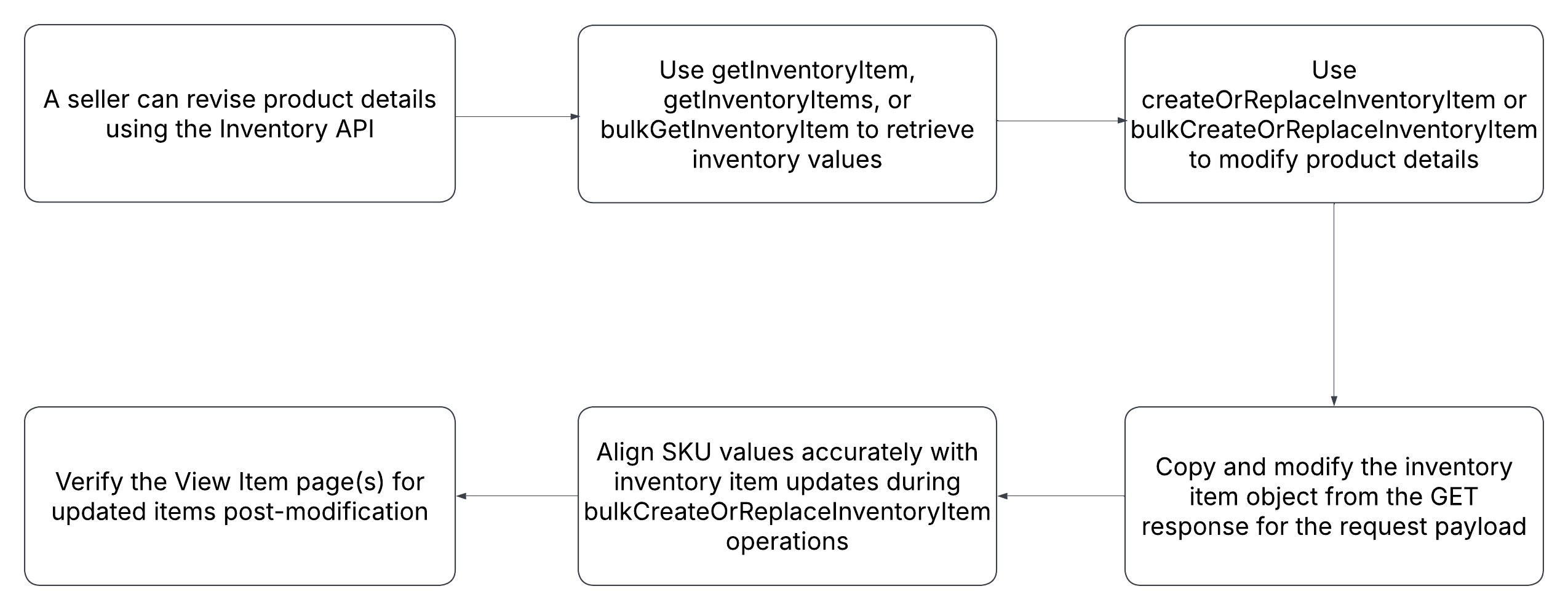
- Use a getInventoryItem (for one specific inventory item), a getInventoryItems (for all inventory items), or a bulkGetInventoryItem (for up to 25 specific inventory items) method to see the current values for one or more inventory items.
- The createOrReplaceInventoryItem method will be used to modify any product details of one inventory item, or the bulkCreateOrReplaceInventoryItem method can be used to modify any product details of up to 25 inventory items. As the names suggest for both of these methods, a complete replace is done for inventory items, so you must pass in all applicable requests fields even if their current value is not changing.
- After a successful createOrReplaceInventoryItem or bulkCreateOrReplaceInventoryItem method, you might want to check the View Item page(s) for the item(s) you changed.
Revising offer details with the Inventory API
The flow diagram below provides a visual representation of how to revise offer details using the Inventory API:
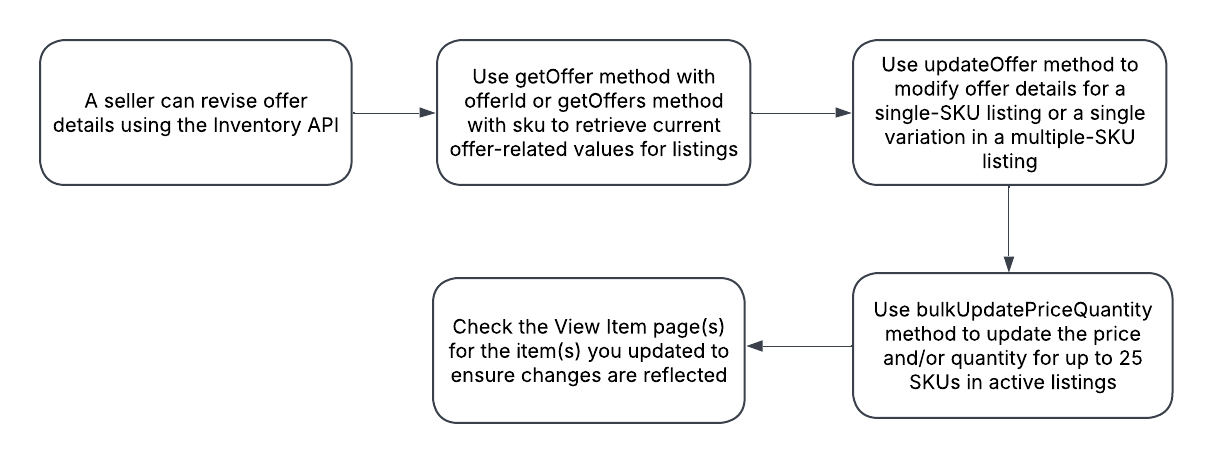
- Use a getOffer method using the offerId as the path parameter, or a getOffers method using the sku query parameter to see the current offer-related values for the listing. If you need to update more than one variation in a multiple-variation listing, you will need to use multiple GET calls, as each variation will have its own offer object.
- The updateOffer method is used to modify any offer details of a single-SKU listing or of a single variation in a multiple-SKU listing. The updateOffer method does a complete replacement of the offer, so you must pass in all applicable requests fields even if their current value is not changing. If you have used any of the GET calls mentioned in Step 1, one thing you can do is copy the offer object and then modify as needed in the request payload of the updateOffer method. There is no “bulk” version of updateOffer, but the bulkUpdatePriceQuantity method can be used to update the price and/or quantity of up to 25 SKUs in active listings.
- After a successful updateOffer or bulkUpdatePriceQuantity method, you might want to check the View Item page(s) for the item(s) you changed.
Adding a variation with the Inventory API
As long as an inventory item and an offer object exists for the SKU to be added, that SKU can be added to an existing multiple-variation listing by using the createOrReplaceInventoryItemGroup method. The new SKU’s value is just included with the rest of the SKU values defined under the variantSKUs array.
Please note that the inventory item and offer objects for a SKU that will become part of an inventory item group object have slightly different requirements than a SKU that will become a single-SKU listing. Revisit the Creating a multiple-variation listing with the Inventory API section for more information about these requirements.
Removing a variation with the Inventory API
There are a number of ways that a variation/SKU within a multiple-variation listing can be removed using the Inventory API. The different Inventory API methods that can be used to remove a SKU from an active multiple-variation listing are covered below:
- The createOrReplaceInventoryItemGroup method can be used to update the inventory item group object, with the SKU to be removed not being included within the variantSKUs array. The inventory item and offer objects associated with this SKU remain intact except the status of the offer goes from the PUBLISHED state to the UNPUBLISHED state.
- The deleteOffer method can be run against that SKU. The offer object is deleted, but the inventory item object stays intact.
- The deleteInventoryItem method can be run against that SKU. This will delete the inventory item object and the offer object associated with that SKU.
Revising listings with the Trading API
Active listings can be revised with the Trading API using ReviseItem or ReviseFixedPriceItem. ReviseItem supports all listing types, but not multiple variations. As its name suggests, ReviseFixedPriceItem only supports fixed price listings (single and multiple-variations).
Follow the process below to revise listing details in an active listing using ReviseItem or ReviseFixedPriceItem:
- Use a GetItem call to see the current settings/values for the listing.
- Identify the listing to revise using the ItemID field in the ReviseItem or ReviseFixedPriceItem call.
- Modify the active listing as needed. Below are ways to add fields, modify fields, or remove fields:
- You can add or modify one or more fields/settings using the applicable field(s) to add/modify the setting(s). See the Listing Creation Guide for more information about setting listing details in the Trading API.
- You can delete one or more fields/settings using the DeletedField field. Just pass in the full path of the field to be removed. For example, if you wanted to remove the optional Subtitle from the listing, you’d pass in the following in the request payload: <DeletedField>Item.SubTitle</DeletedField>. To remove a boolean field, you can pass in that field name and use false as the value. For example, if you wanted to disable the Best Offer feature for the listing, you’d pass in the following in the request payload: <BestOfferEnabled>false</BestOfferEnabled>
Note that required fields cannot be removed and the values of some fields cannot be changed under some circumstances, such as auction listings that end within 12 hours or any listings that have pending Best Offers/counteroffers.
-
A successful ReviseItem or ReviseFixedPriceItem call should not trigger any errors or warnings. Keep in mind that a Revise call may incur additional listing fees depending on which setting was added. For example, if the seller added a subtitle to an active listing that didn’t have one before. Also note that you will not be automatically entitled to a listing fee refund just because you removed the setting/feature that incurred the fee.
Other listing revision calls in the Trading API include:
- ReviseInventoryStatus: a call that allows a seller to easily update the price and/or quantity for one to four active listings per call.
- AddToItemDescription: a call that allows a seller to append additional text to the current item description.
Revising listings in bulk with the Inventory API
The flow diagram below provides a visual representation of how to revise up to 25 active listings using three bulk methods of the Inventory API:
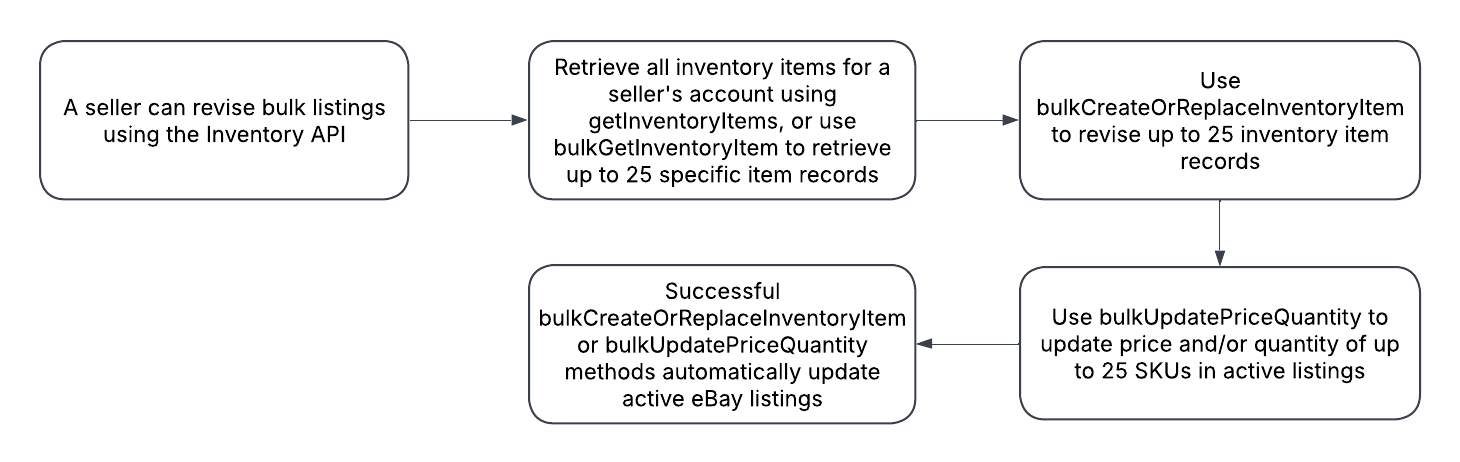
Here are the necessary steps to take in the Inventory API to revise up to 25 listings:
- Use the getInventoryItems method to retrieve all inventory items defined for a seller’s account, or the bulkGetInventoryItem method can be used to retrieve up to 25 specific inventory item records. Currently, there is no bulk method that retrieves multiple offers.
- Use the bulkCreateOrReplaceInventoryItem method to revise up to 25 inventory item records. The payload for this method is identical to the createOrReplaceInventoryItem method except up to 25 inventory item records can be revised instead of just one, and the requests.sku field is specified in the request payload for each inventory item record instead of the sku value being a path parameter like in the createOrReplaceInventoryItem method. As the name suggests, a complete replace is done for inventory items, so you must pass in all applicable requests fields even if their current value is not changing.
- There is no “bulk” version of the updateOffer method, but the bulkUpdatePriceQuantity method can be used to update the price and/or quantity of up to 25 SKUs in active listings.
- A successful bulkCreateOrReplaceInventoryItem or bulkUpdatePriceQuantity method will automatically update the active eBay listings, so you might want to check the View Item page(s) for the item(s) you revised.
Revising listings in bulk with the Sell Feed API
The Sell Feed API lets sellers upload and download various feed files and reports. The two feed types used for bulk listing updates are LMS_REVISE_ITEM, LMS_REVISE_FIXED_PRICE_ITEM, and LMS_REVISE_INVENTORY_STATUS. The size limitation for these feed files is 15 MB, and the files are processed asynchronously by eBay. The status of all upload tasks are tracked with a unique 'task ID'.
The flow diagram below provides a visual representation of how to revise multiple active listings using the Sell Feed API:
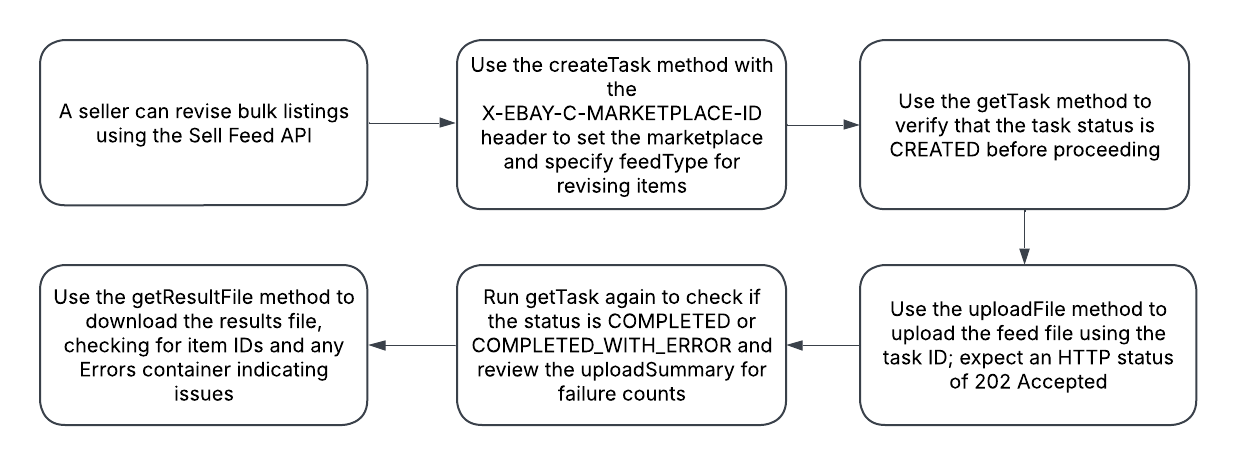
Here are the necessary steps to take in the Sell Feed API to revise multiple active listings:
- Stage the task using the createTask method. Use the X-EBAY-C-MARKETPLACE-ID header to set the listing marketplace, and set the feedType value in the request payload to either LMS_REVISE_ITEM, LMS_REVISE_FIXED_PRICE_ITEM, or LMS_REVISE_INVENTORY_STATUS. LMS_REVISE_ITEM cannot be used if you are modifying multiple-variation listings. If the call is successful, the getTask URI for the task is returned in the Location response header.
- Use the getTask method to check the status of the task. The value returned in the status field should be CREATED. Proceed to the next step if you see this value.
- Use the uploadFile method to upload the LMS_REVISE_ITEM, LMS_REVISE_FIXED_PRICE_ITEM, or LMS_REVISE_INVENTORY_STATUS feed file. The same task ID returned in createTask method and used in getTask method is used as a path parameter for the uploadFile method.
- Run another getTask method (using the same task ID) to check status. This time, you will want to see a value of COMPLETED or COMPLETED_WITH_ERROR.
- Use the getResultFile method (using the same task ID as a path parameter) to retrieve the file that indicates the results of the listings revision task.
Relisting items
The process to relist recently ended listings will vary based on whether you are using the Inventory API, the Trading API, or the Sell Feed API. The required steps to relist with each of these APIs will be covered individually below.
Relisting items with the Inventory API
In the Inventory API, there are no actual “relist” methods, but instead, you will use the publishOffer method to move an offer from the unpublished to the published state.
Below is a logical flow to use to relist an item with the Inventory API:
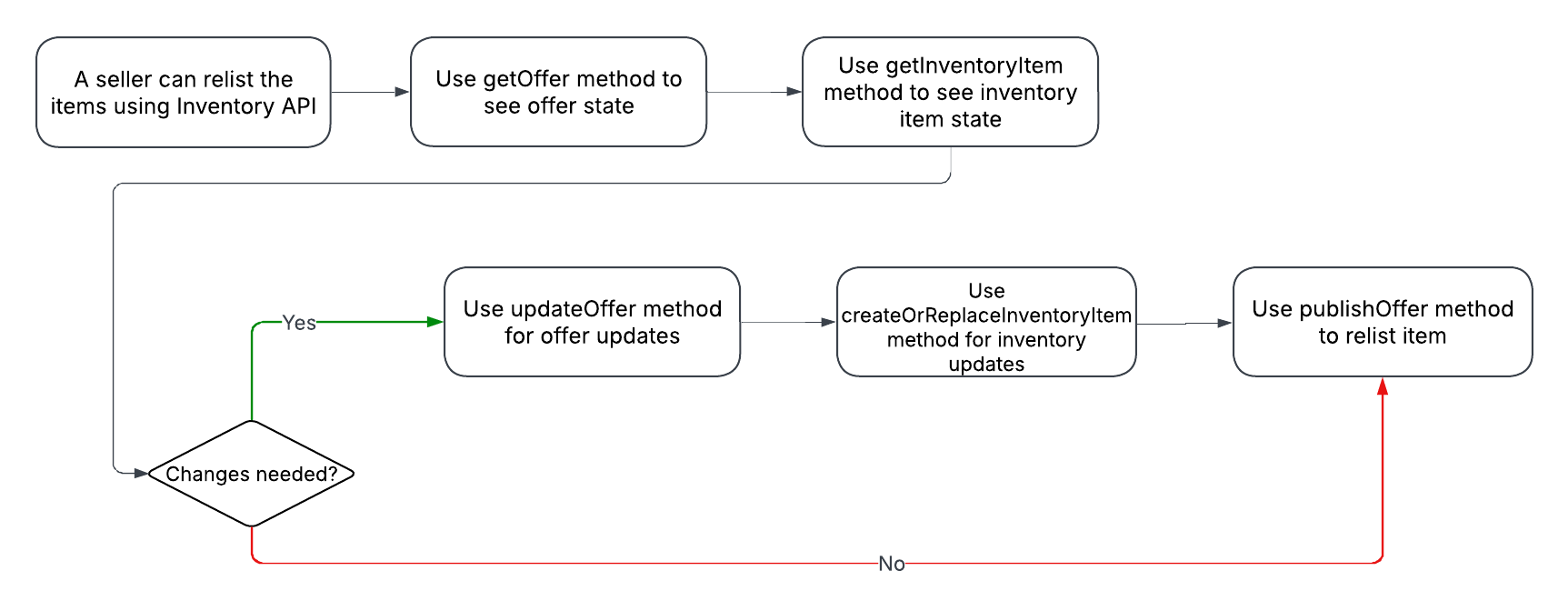
- Before using the publishOffer method, you should use the getOffer method to see the current state of the offer and the getInventoryItem method to see the current state of the inventory item.
- According to the changes you want to make, either use the updateOffer method to make offer updates or the createOrReplaceInventoryItem method to make inventory item updates. If no changes are needed, you can proceed to the next step.
- Use the publishOffer method to relist the item.
Relisting items with the Trading API
Recently ended listings can be relisted with the Trading API using RelistItem or RelistFixedPriceItem. RelistItem supports all listing types, but not multiple variations. As its name suggests, RelistFixedPriceItem only supports fixed price listings (single and multiple-variations).
Follow the process below to relist an item using RelistItem or RelistFixedPriceItem:
- Use a GetItem call to see the current settings/values for the listing.
- Identify the listing to relist using the ItemID field in the RelistItem or RelistFixedPriceItem call.
- Make any necessary modifications to the listing.
-
A successful RelistItem or RelistFixedPriceItem call should not trigger any errors or warnings. A successfully relisted item will get a new ItemID value returned in the response.
Bulk relisting items with the Sell Feed API
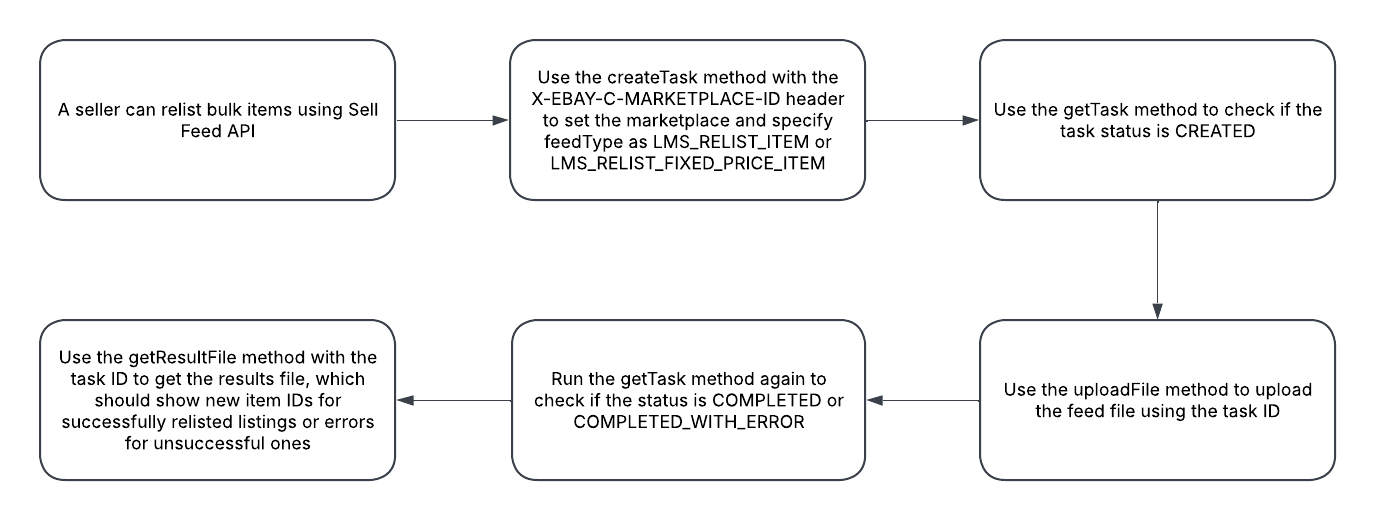
The Sell Feed API lets sellers upload and download various feed files and reports. The two feed types used for bulk item relisting are LMS_RELIST_ITEM and LMS_RELIST_FIXED_PRICE_ITEM.
The flow diagram below provides a visual representation of how to relist multiple items using the Sell Feed API:
Retrieving listings
Retrieving eBay listings with APIs varies based on whether you use the Inventory API, the Trading API, or the Sell Feed API, so they will be covered individually below.
Retrieving listings using the Inventory API
When using the Inventory API, eBay listings are actually comprised of an inventory_item object and an offer object, with the inventory_item object describing details of the item/product, and the offer object describing all non-product, offer-related details such as price, category, quantity, listing details, and others.
- getInventoryItem: retrieves a specific inventory_item object, using its SKU value as a path parameter.
- getInventoryItems: retrieves all of a seller’s inventory_item objects across all eBay marketplaces. The response for this method can be quite large, so pagination control is available.
- bulkGetInventoryItem: retrieves up to 25 inventory_item objects, with the SKU values being specified in the request payload.
Retrieving listings using the Trading API
There are a few GET calls in the Trading API to retrieve eBay listings, with the main one being GetItem.
Ending listings
Ending eBay listings with APIs varies based on whether you use the Inventory API, the Trading API, or the Sell Feed API, so they will be covered individually below.
Ending listings using the Inventory API
- The withdrawOffer method is used to end a single-variation eBay listing. If the operation is successful, the offer object remains, but just goes from the PUBLISHED state to the UNPUBLISHED state.
- The deleteOffer method will end a single-variation eBay listing and it will also delete the offer object associated with that listing.
- The deleteInventoryItem method will end a single-variation eBay listing and it will also delete the inventory item object and the offer object associated with that listing.
- The withdrawOfferByInventoryItemGroup method is used to end a multiple-variation eBay listing. The inventory_item_group object and all inventory item and offer objects in the group remain intact, but all offers just go from the PUBLISHED state to the UNPUBLISHED state.
- The deleteInventoryItemGroup method will end a multiple-variation eBay listing and also delete the inventory item group object, but the inventory item objects and the offer objects associated with that listing will remain intact other than the status of the offer objects going from the PUBLISHED state to the UNPUBLISHED state.
End and publish a single-SKU listing
Same offer, new listing
Use this flow when a seller wants to end a single-SKU listing and republish it — with or without updates to the inventory item or offer. The offerId is preserved throughout the flow, and publishOffer creates a new listing with a new listingId.
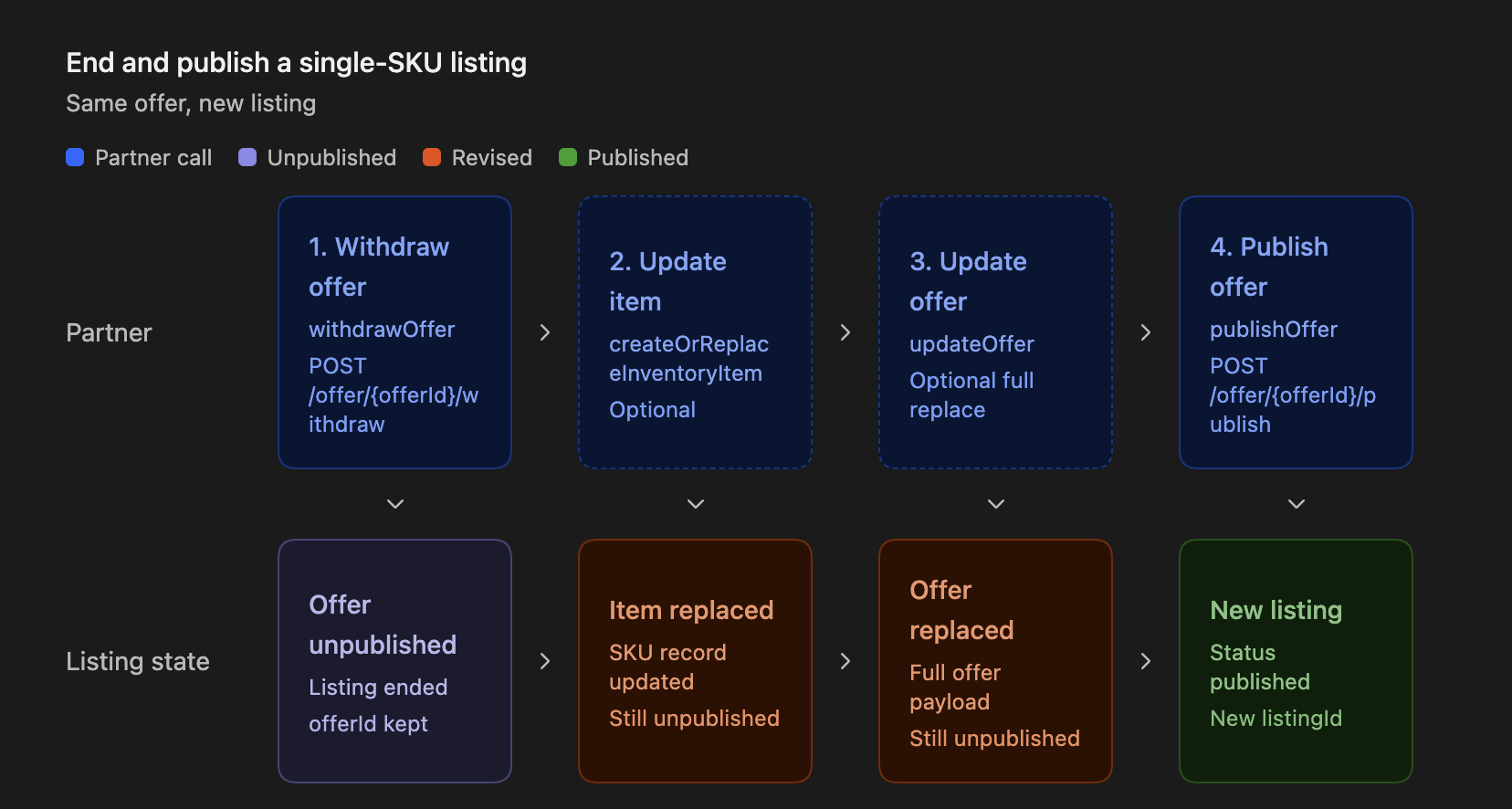
The flow diagram below provides a visual representation of how to end and publish a single-SKU listing using the Inventory API:
Here are the necessary steps:
- Call withdrawOffer with the offerId as the path parameter to end the active listing. After this call, the listing ends, the offer object moves from the PUBLISHED state to the UNPUBLISHED state, and the offerId is preserved.
- (Optional) If product-level details need to change (title, condition, description, images, or aspects), call createOrReplaceInventoryItem using the sku as the path parameter. This method performs a complete replacement — include all fields in the request payload, even those that are not changing.
- (Optional) If offer-level details need to change (price, quantity, policies, category, or listing description), call updateOffer with the offerId as the path parameter. This method performs a complete replacement — include all fields in the request payload, even those that are not changing.
- Call publishOffer with the offerId as the path parameter to create a new active eBay listing. After this call, the offer object moves from the UNPUBLISHED state to the PUBLISHED state, and a new listingId is returned in the response.
Important! Use withdrawOffer, not deleteOffer, when you plan to republish the same offer. The deleteOffer method permanently removes the offer object, so that offerId cannot be published again.
Note: The offerId stays the same through withdraw, update, and publish. publishOffer returns a new listingId. updateOffer replaces the whole offer object — send every field you want to keep, including fields that did not change.
End and publish a variation listing
Group offers, new listing
Use this flow when a seller wants to end a multiple-variation listing and republish it — with or without updates to the group or individual variation offers. All offerId values and the inventory item group are preserved throughout the flow.
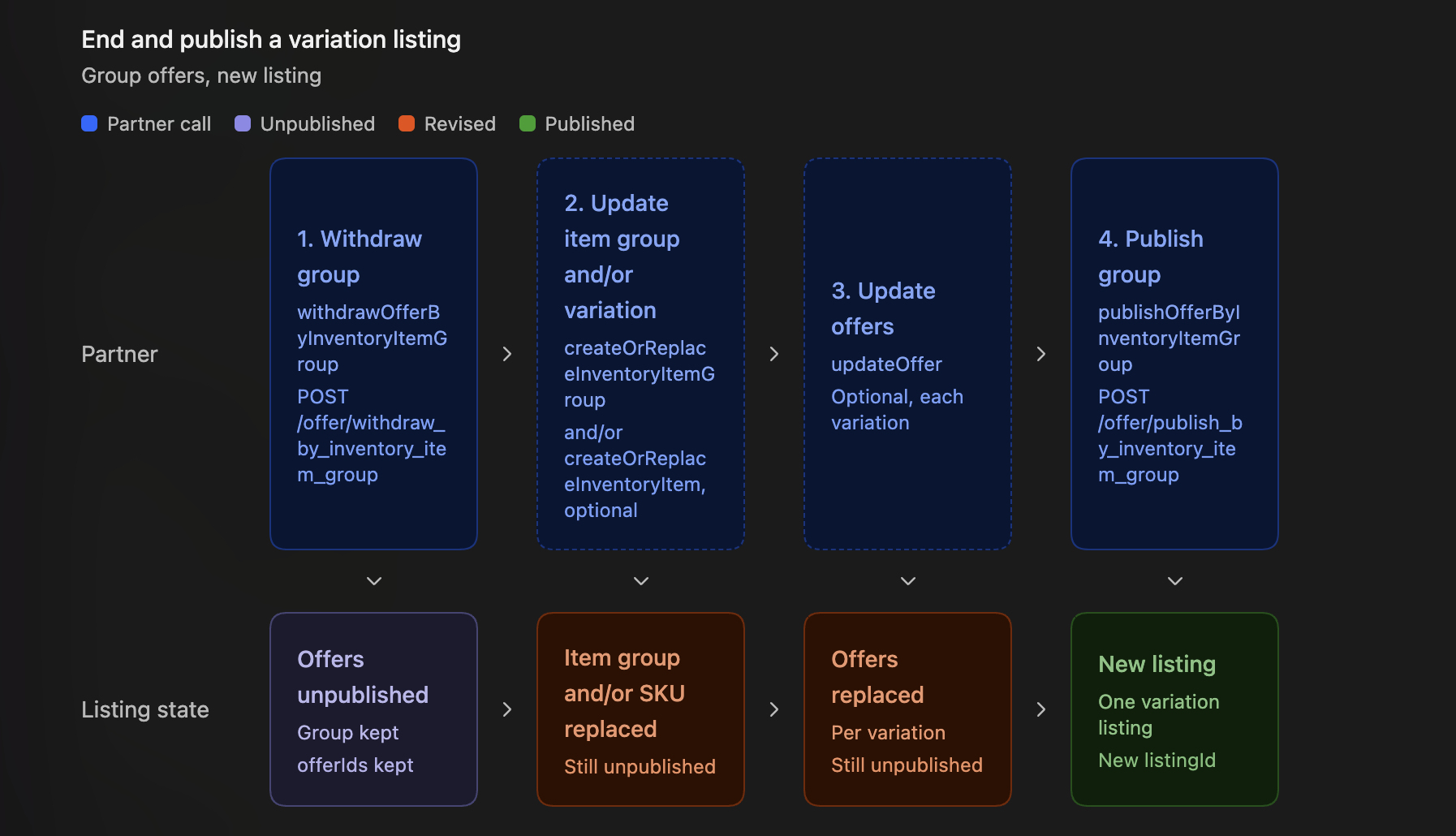
The flow diagram below provides a visual representation of how to end and publish a variation listing using the Inventory API:
Here are the necessary steps:
- Call withdrawOfferByInventoryItemGroup to end the multiple-variation listing. Pass the inventoryItemGroupKey and marketplaceId in the request body. After this call, the variation listing ends, all offer objects move from the PUBLISHED state to the UNPUBLISHED state, and the inventory_item_group object and all offerId values are preserved.
- (Optional) To update the item group and/or variation, call createOrReplaceInventoryItemGroup using the inventoryItemGroupKey as the path parameter to change group-level details (such as common aspects or which SKUs belong to the variation), or call createOrReplaceInventoryItem using the sku as the path parameter to change product details for an individual variation. Both methods perform a complete replacement — include all fields in the request payload, even those that are not changing.
- (Optional) For each variation that needs offer-level changes, call updateOffer with that variation’s offerId. Repeat for each variation that requires updates. This method performs a complete replacement — include all fields, even those that are not changing.
- Call publishOfferByInventoryItemGroup to create a new multiple-variation listing. Pass the inventoryItemGroupKey and marketplaceId in the request body. After this call, all offer objects move from the UNPUBLISHED state to the PUBLISHED state, and a new listingId is returned in the response.
Note: The offerId for each variation stays the same through withdraw, update, and publish. publishOfferByInventoryItemGroup returns a new listingId. updateOffer replaces the whole offer object — send every field you want to keep, including fields that did not change.
Ending listings using the Trading API
An active listing can be ended with the Trading API using EndItem or EndFixedPriceItem, or up to 10 active listings can be ended with one EndItems call.
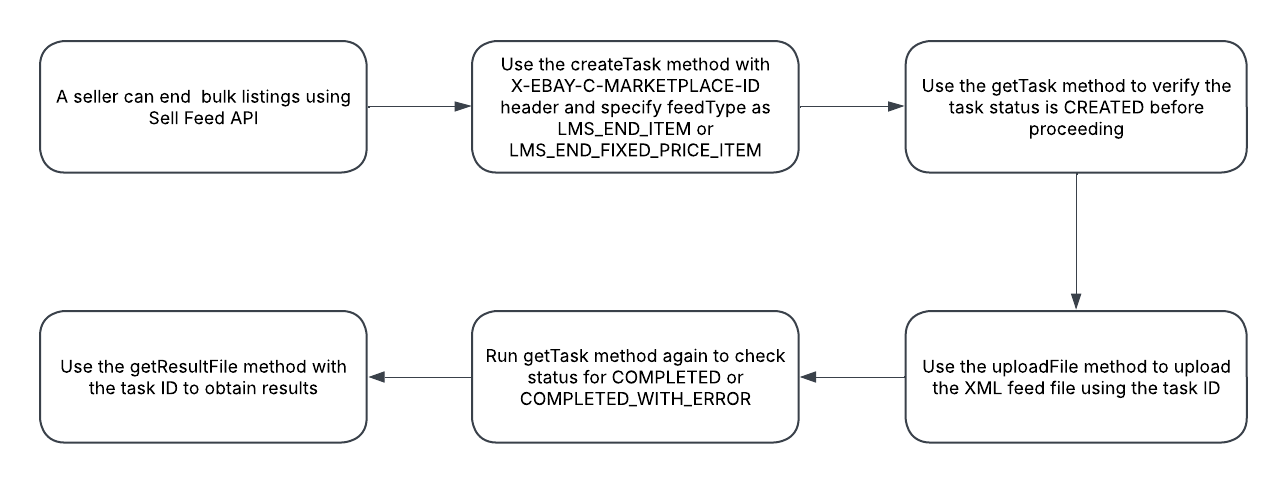
Ending listings in bulk using Sell Feed API
The flow diagram below provides a visual representation of how to end multiple listings using the Sell Feed API:
Code Samples
Retrieve all inventory items defined in Inventory API
curl -X GET "https://api.ebay.com/sell/inventory/v1/inventory_item?limit=2&offset=0" \
     -H "Authorization: Bearer YOUR_ACCESS_TOKEN"
Retrieve all inventory locations defined in Inventory API
curl -X GET "https://api.ebay.com/sell/inventory/v1/location?limit=20&offset=0" \
     -H "Authorization: Bearer YOUR_ACCESS_TOKEN"
Error Handling
- eBay has a policy where each active listing may only be revised up to 250 times per calendar day, so any API operation that attempts to revise a listing beyond that maximum threshold will fail. The user will need to wait until the next calendar day to make additional revisions.
- An active listing created using the Inventory API cannot be revised using Trading API Revise/Relist calls.
- JavaScript cannot be used in any seller-defined, text-based fields (such as item description) and will lead to an error.
- When using the Sell Feed API, the feed type specified through the feedType field of the createTask method should match the actual object types being uploaded through the uploadFile method.
- There are quite a few revision restrictions for auction listings. Some restrictions start as soon as the item has one or more active bids, and then more restrictions kick in once the auction listing has less than 12 hours before ending. Fixed priced listings also have some revision restrictions, including when the listing has open Best Offers. See the Revise a listing help topic for more information on these restrictions. An error will occur if a Revise call is attempted for a revision that is not allowed.
Best Practices
- Revising a listing generally does not incur eBay fees unless a fee-based option is added such as adding a subtitle or adding a Reserve Price to auction listings.
- As an alternative to using the Trading API sandbox environment, the VerifyRelistItem call can be used to test the validity of the item object in the production environment before that item is actually relisted. This call uses the same logic and validation as the RelistItem or RelistFixedPriceItem calls, but there is no risk of incurring any listing fees.
- For those using Inventory API, the bulkUpdatePriceQuantity is a nice alternative to bulkCreateOrReplaceInventoryItem or updateOffer when a user wants to update just the price and/or quantity for multiple listings.
- The getListingFees method in the Inventory API can be used against up to 250 unpublished offers to get the expected listing fees.
- Like the names imply, the createOrReplaceInventoryItem and bulkCreateOrReplaceInventoryItem methods will do a complete replacement of inventory item objects, so you must pass in all applicable fields even if the values of those fields are not changing.
- If you need to revise any active listing with a createOrReplaceInventoryItem or a bulkCreateOrReplaceInventoryItem method, you may want to consider using the bulkGetInventoryItem, getInventoryItems, or getInventoryItem methods to retrieve the current state of the inventory item object(s) and then modify as needed with createOrReplaceInventoryItem or bulkCreateOrReplaceInventoryItem methods.
- Consider using the withdrawOffer method to end an active listing instead of the deleteOffer method if there’s a chance that you’d want to publish the offer again at a later date. The deleteOffer method will end an active listing and it will delete the offer object associated with the listing.
- Use the withdrawOfferByInventoryItemGroup method to end a multiple-variation listing. The inventory item group object itself and each offer associated with each variation in the group is not affected by this action other than all offers going from the PUBLISHED state to the UNPUBLISHED state.