This guide discusses the use cases involved in managing active eBay listings, and touches on revising listings, relisting items, retrieving listings, and ending listings.
Overview
API Use Case
Revising listings
The Inventory API, the Trading API, and the Sell Feed API can all be used to revise active listings. The required steps vary with each of these APIs, so they will be covered individually below. Regardless of the API used, active listings can only be revised a maximum of 250 times per calendar day.
Revising product details with the Inventory API
The flow diagram below provides a visual representation of how to revise product details using the Inventory API: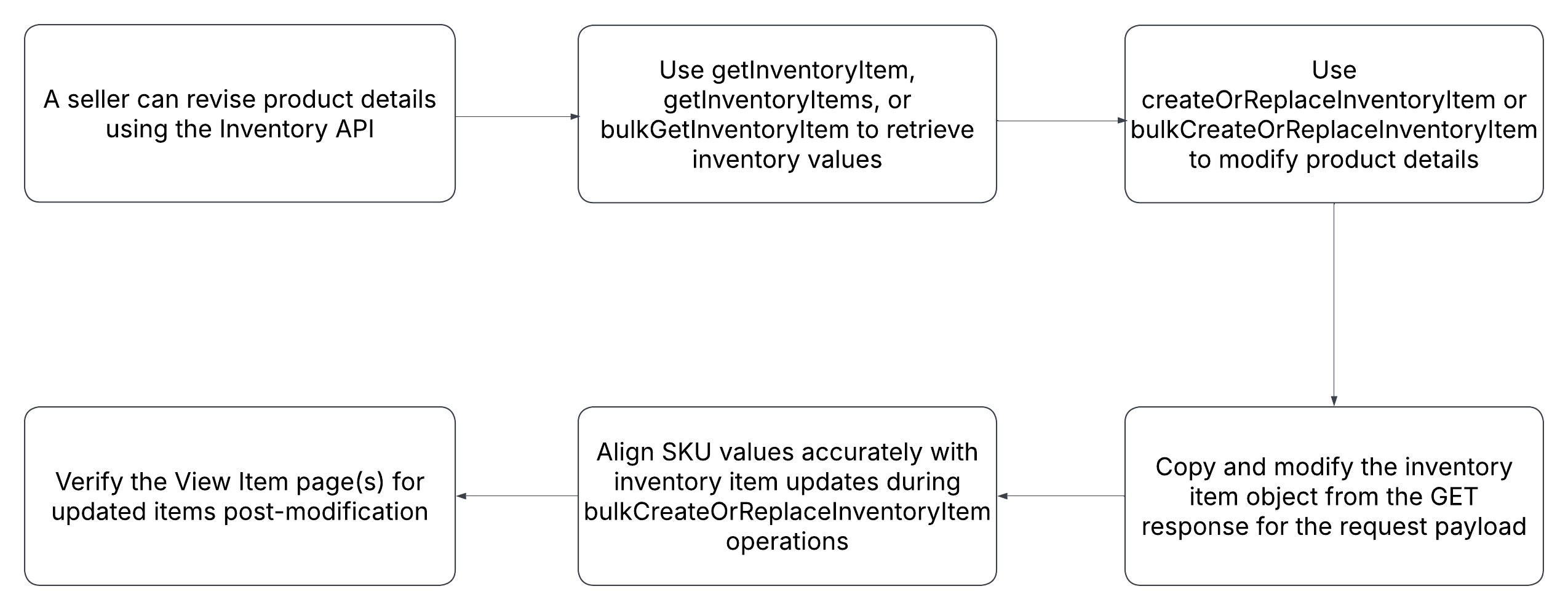
- Use a getInventoryItem (for one specific inventory item), a getInventoryItems (for all inventory items), or a bulkGetInventoryItem (for up to 25 specific inventory items) method to see the current values for one or more inventory items.
- The createOrReplaceInventoryItem method will be used to modify any product details of one inventory item, or the bulkCreateOrReplaceInventoryItem method can be used to modify any product details of up to 25 inventory items. As the names suggest for both of these methods, a complete replace is done for inventory items, so you must pass in all applicable requests fields even if their current value is not changing.
- After a successful createOrReplaceInventoryItem or bulkCreateOrReplaceInventoryItem method, you might want to check the View Item page(s) for the item(s) you changed.
Revising offer details with the Inventory API
The flow diagram below provides a visual representation of how to revise offer details using the Inventory API: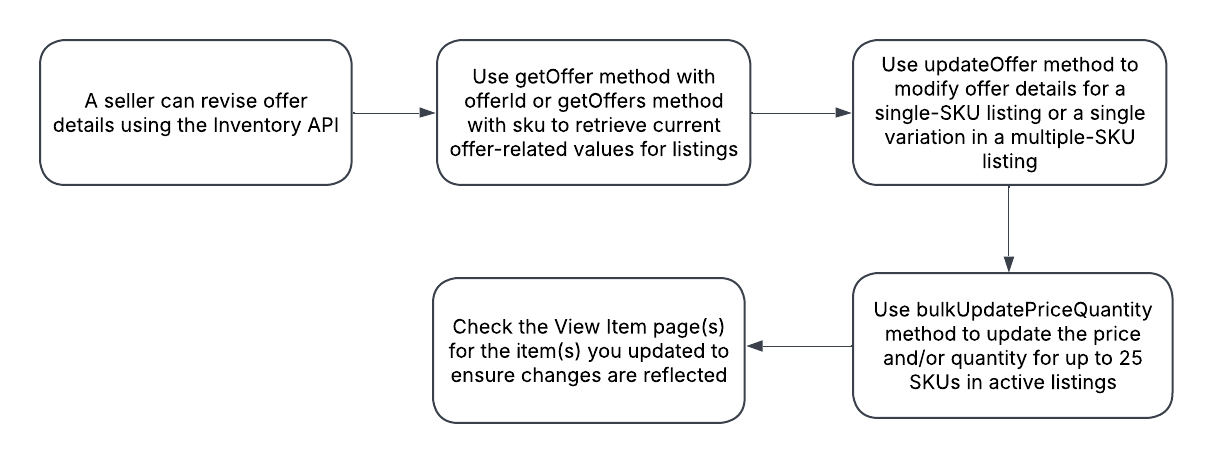
- Use a getOffer method using the offerId as the path parameter, or a getOffers method using the sku query parameter to see the current offer-related values for the listing. If you need to update more than one variation in a multiple-variation listing, you will need to use multiple GET calls, as each variation will have its own offer object.
- The updateOffer method is used to modify any offer details of a single-SKU listing or of a single variation in a multiple-SKU listing. The updateOffer method does a complete replacement of the offer, so you must pass in all applicable requests fields even if their current value is not changing. If you have used any of the GET calls mentioned in Step 1, one thing you can do is copy the offer object and then modify as needed in the request payload of the updateOffer method. There is no “bulk” version of updateOffer, but the bulkUpdatePriceQuantity method can be used to update the price and/or quantity of up to 25 SKUs in active listings.
- After a successful updateOffer or bulkUpdatePriceQuantity method, you might want to check the View Item page(s) for the item(s) you changed.
Adding a variation with the Inventory API
As long as an inventory item and an offer object exists for the SKU to be added, that SKU can be added to an existing multiple-variation listing by using the createOrReplaceInventoryItemGroup method. The new SKU’s value is just included with the rest of the SKU values defined under the variantSKUs array.
Please note that the inventory item and offer objects for a SKU that will become part of an inventory item group object have slightly different requirements than a SKU that will become a single-SKU listing. Revisit the Creating a multiple-variation listing with the Inventory API section for more information about these requirements.
Removing a variation with the Inventory API
There are a number of ways that a variation/SKU within a multiple-variation listing can be removed using the Inventory API. The different Inventory API methods that can be used to remove a SKU from an active multiple-variation listing are covered below:
- The createOrReplaceInventoryItemGroup method can be used to update the inventory item group object, with the SKU to be removed not being included within the variantSKUs array. The inventory item and offer objects associated with this SKU remain intact except the status of the offer goes from the PUBLISHED state to the UNPUBLISHED state.
- The deleteOffer method can be run against that SKU. The offer object is deleted, but the inventory item object stays intact.
- The deleteInventoryItem method can be run against that SKU. This will delete the inventory item object and the offer object associated with that SKU.
Revising listings with the Trading API
Active listings can be revised with the Trading API using ReviseItem or ReviseFixedPriceItem. ReviseItem supports all listing types, but not multiple variations. As its name suggests, ReviseFixedPriceItem only supports fixed price listings (single and multiple-variations).
Follow the process below to revise listing details in an active listing using ReviseItem or ReviseFixedPriceItem:
- Use a GetItem call to see the current settings/values for the listing.
- Identify the listing to revise using the ItemID field in the ReviseItem or ReviseFixedPriceItem call.
- Modify the active listing as needed. Below are ways to add fields, modify fields, or remove fields:
- You can add or modify one or more fields/settings using the applicable field(s) to add/modify the setting(s). See the Listing Creation Guide for more information about setting listing details in the Trading API.
- You can delete one or more fields/settings using the DeletedField field. Just pass in the full path of the field to be removed. For example, if you wanted to remove the optional Subtitle from the listing, you’d pass in the following in the request payload: <DeletedField>Item.SubTitle</DeletedField>. To remove a boolean field, you can pass in that field name and use false as the value. For example, if you wanted to disable the Best Offer feature for the listing, you’d pass in the following in the request payload: <BestOfferEnabled>false</BestOfferEnabled>
Note that required fields cannot be removed and the values of some fields cannot be changed under some circumstances, such as auction listings that end within 12 hours or any listings that have pending Best Offers/counteroffers.
-
A successful ReviseItem or ReviseFixedPriceItem call should not trigger any errors or warnings. Keep in mind that a Revise call may incur additional listing fees depending on which setting was added. For example, if the seller added a subtitle to an active listing that didn’t have one before. Also note that you will not be automatically entitled to a listing fee refund just because you removed the setting/feature that incurred the fee.
Other listing revision calls in the Trading API include:
- ReviseInventoryStatus: a call that allows a seller to easily update the price and/or quantity for one to four active listings per call.
- AddToItemDescription: a call that allows a seller to append additional text to the current item description.
Revising listings in bulk with the Inventory API
The flow diagram below provides a visual representation of how to revise up to 25 active listings using three bulk methods of the Inventory API: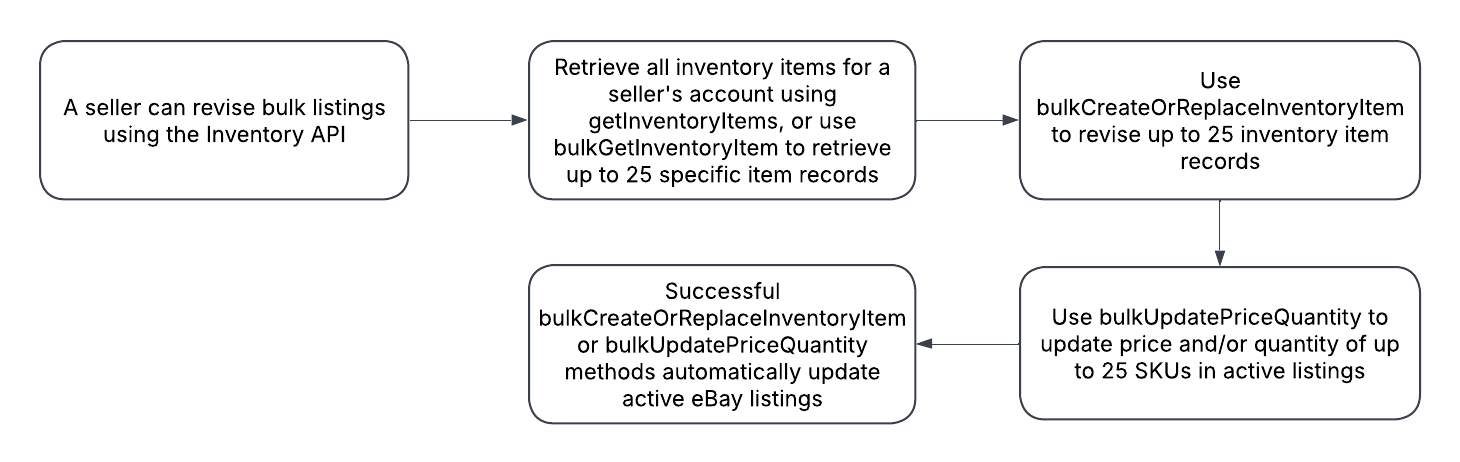
Here are the necessary steps to take in the Inventory API to revise up to 25 listings:
- Use the getInventoryItems method to retrieve all inventory items defined for a seller’s account, or the bulkGetInventoryItem method can be used to retrieve up to 25 specific inventory item records. Currently, there is no bulk method that retrieves multiple offers.
- Use the bulkCreateOrReplaceInventoryItem method to revise up to 25 inventory item records. The payload for this method is identical to the createOrReplaceInventoryItem method except up to 25 inventory item records can be revised instead of just one, and the requests.sku field is specified in the request payload for each inventory item record instead of the sku value being a path parameter like in the createOrReplaceInventoryItem method. As the name suggests, a complete replace is done for inventory items, so you must pass in all applicable requests fields even if their current value is not changing.
- There is no “bulk” version of the updateOffer method, but the bulkUpdatePriceQuantity method can be used to update the price and/or quantity of up to 25 SKUs in active listings.
- A successful bulkCreateOrReplaceInventoryItem or bulkUpdatePriceQuantity method will automatically update the active eBay listings, so you might want to check the View Item page(s) for the item(s) you revised.
Revising listings in bulk with the Sell Feed API
The Sell Feed API lets sellers upload and download various feed files and reports. The two feed types used for bulk listing updates are LMS_REVISE_ITEM, LMS_REVISE_FIXED_PRICE_ITEM, and LMS_REVISE_INVENTORY_STATUS. The size limitation for these feed files is 15 MB, and the files are processed asynchronously by eBay. The status of all upload tasks are tracked with a unique 'task ID'.
The flow diagram below provides a visual representation of how to revise multiple active listings using the Sell Feed API: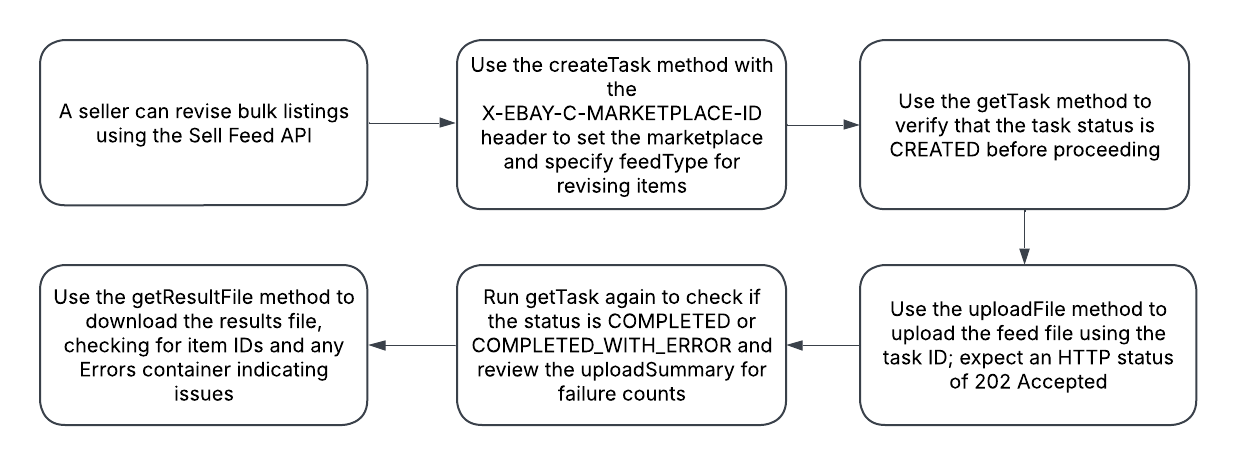
- Stage the task using the createTask method. Use the X-EBAY-C-MARKETPLACE-ID header to set the listing marketplace, and set the feedType value in the request payload to either LMS_REVISE_ITEM, LMS_REVISE_FIXED_PRICE_ITEM, or LMS_REVISE_INVENTORY_STATUS. LMS_REVISE_ITEM cannot be used if you are modifying multiple-variation listings. If the call is successful, the getTask URI for the task is returned in the Location response header.
- Use the getTask method to check the status of the task. The value returned in the status field should be CREATED. Proceed to the next step if you see this value.
- Use the uploadFile method to upload the LMS_REVISE_ITEM, LMS_REVISE_FIXED_PRICE_ITEM, or LMS_REVISE_INVENTORY_STATUS feed file.The same task ID returned in createTask method and used in getTask method is used as a path parameter for the uploadFile method. The uploadFile method does not have a request payload, but you will be uploading an XML data file. See the uploadFile reference documentation and/or the Create the data file topic for more details on how to create and upload the XML file. If the uploadFile call is successful, an HTTP status code of 202 Accepted should be returned. Uploaded files are processed asynchronously, so it may take some time to process the file based on the size of the file.
- Run another getTask method (using the same task ID) to check status. This time, you will want to see a value of COMPLETED or COMPLETED_WITH_ERROR. COMPLETED is preferable over COMPLETED_WITH_ERROR, as the latter generally indicates that one or more listings were not revised successfully. Also check the uploadSummary container. If all listings were successfully revised, you should see a value of 0 in the uploadSummary.failureCount field
- Use the getResultFile method (using the same task ID as a path parameter) to retrieve the file that indicates the results of the listings revision task. A completely successful task should show item ID values for the newly revised listings. For any listings that were not revised successfully, you should see an Errors container that indicates the issue(s) with one or more listings.
Relisting items
The process to relist recently ended listings will vary based on whether you are using the Inventory API, the Trading API, or the Sell Feed API. The required steps to relist with each of these APIs will be covered individually below.
Relisting items with the Inventory API
In the Inventory API, there are no actual “relist” methods, but instead, you will use the publishOffer method to move an offer from the unpublished to the published state.
Below is a logical flow to use to relist an item with the Inventory API: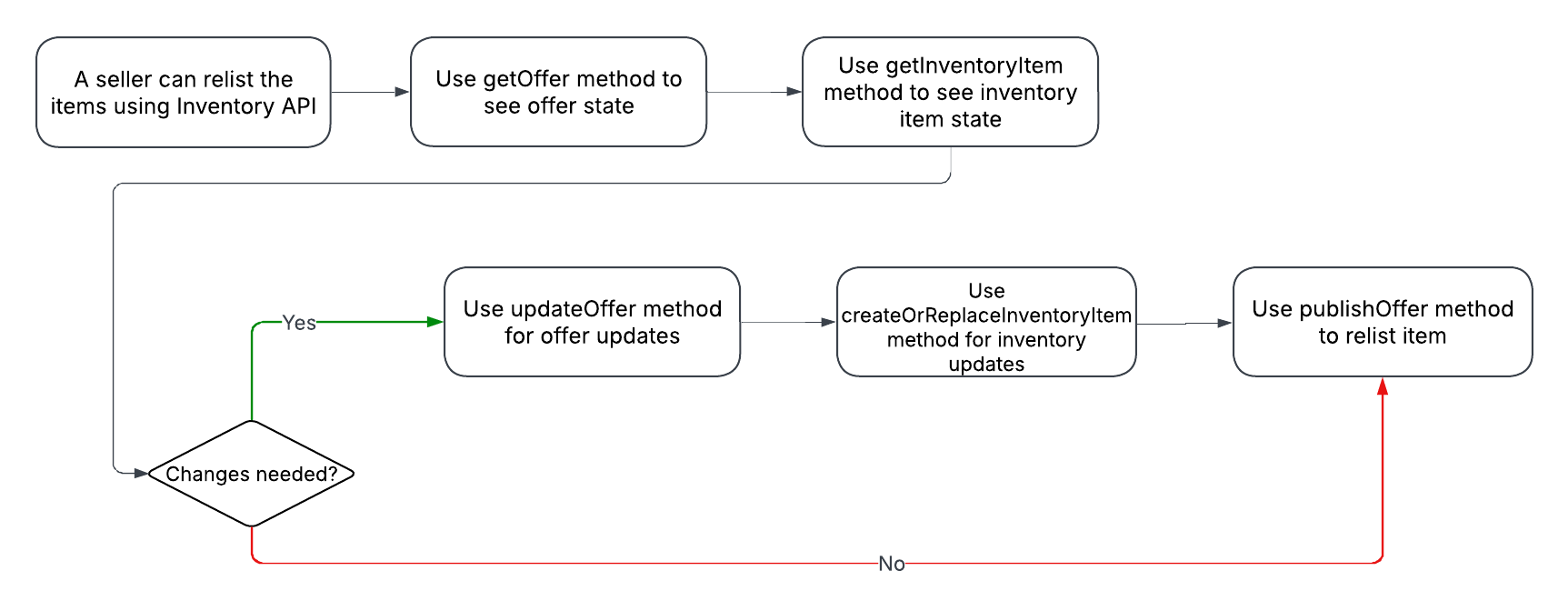
- Before using the publishOffer method, you should use the getOffer method to see the current state of the offer and the getInventoryItem method to see the current state of the inventory item.
- According to the changes you want to make, either use the updateOffer method to make offer updates or the createOrReplaceInventoryItem method to make inventory item updates. If no changes are needed, you can proceed to the next step.
- Use the publishOffer method to relist the item.
Relisting items with the Trading API
Recently ended listings can be relisted with the Trading API using RelistItem or RelistFixedPriceItem. RelistItem supports all listing types, but not multiple variations. As its name suggests, RelistFixedPriceItem only supports fixed price listings (single and multiple-variations).
Follow the process below to relist an item using RelistItem or RelistFixedPriceItem:
- Use a GetItem call to see the current settings/values for the listing.
- Identify the listing to relist using the ItemID field in the RelistItem or RelistFixedPriceItem call.
- Make any necessary modifications to the listing. Below are ways to add, modify, or remove fields:
- You can add or modify one or more fields/settings using the applicable field(s) to add/modify the setting(s). See the Listing Creation Guide for more information about setting listing details in the Trading API.
- You can delete one or more fields/settings using the DeletedField field. Just pass in the full path of the field to be removed. For example, if you wanted to remove the optional Subtitle from the listing, you’d pass in the following in the request payload: <DeletedField>Item.SubTitle</DeletedField>. To remove a boolean field, you can pass in that field name and use false as the value. For example, if you wanted to disable the Best Offer feature for the listing, you’d pass in the following in the request payload: <BestOfferEnabled>false</BestOfferEnabled>
Note that required fields cannot be removed.
-
A successful RelistItem or RelistFixedPriceItem call should not trigger any errors or warnings. Keep in mind that a Relist call is subject to the same listing fees as an Add call. A successfully relisted item will get a new ItemID value returned in the response.
Bulk relisting items with the Sell Feed API
The Sell Feed API lets sellers upload and download various feed files and reports. The two feed types used for bulk item relisting are LMS_RELIST_ITEM and LMS_RELIST_FIXED_PRICE_ITEM. The size limitation for these feed files is 15 MB, and the files are processed asynchronously by eBay. The status of all upload tasks are tracked with a unique 'task ID'.
The flow diagram below provides a visual representation of how to relist multiple items using the Sell Feed API: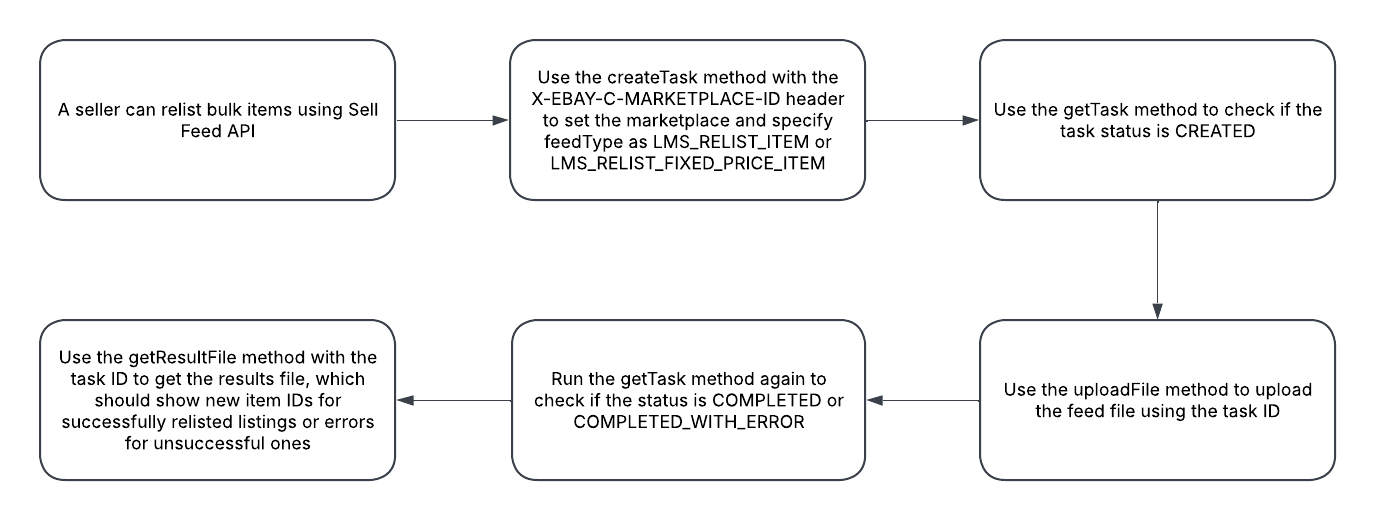
Here are the necessary steps to take in the Sell Feed API to relist multiple items:
- Stage the task using the createTask method. Use the X-EBAY-C-MARKETPLACE-ID header to set the listing marketplace, and set the feedType value in the request payload to either LMS_RELIST_ITEM or LMS_RELIST_FIXED_PRICE_ITEM. LMS_RELIST_ITEM cannot be used if you are relisting multiple-variation listings. If the call is successful, the getTask URI for the task is returned in the Location response header.
- Use the getTask method to check the status of the task. The value returned in the status field should be CREATED. Proceed to the next step if you see this value.
- Use the uploadFile method to upload the LMS_RELIST_ITEM or LMS_RELIST_FIXED_PRICE_ITEM feed file.The same task ID returned in createTask method is used as a path parameter for the uploadFile method. The uploadFile method does not have a request payload, but you will be uploading an XML data file. See the uploadFile reference documentation and/or the Create the data file topic for more details on how to create and upload the XML file. If the uploadFile call is successful, an HTTP status code of 202 Accepted should be returned. Uploaded files are processed asynchronously, so it may take some time to process the file based on the size of the file.
- Run another getTask method (using the same task ID) to check status. This time, you will want to see a value of COMPLETED or COMPLETED_WITH_ERROR. COMPLETED is preferable over COMPLETED_WITH_ERROR, as the latter generally indicates that one or more listings were not relisted successfully. Also check the uploadSummary container. If all listings were successfully relisted, you should see a value of 0 in the uploadSummary.failureCount field.
- Use the getResultFile method (using the same task ID as a path parameter) to retrieve the file that indicates the results of the listings relisting task. A completely successful task should show new item ID values for the newly relisted listings. For any listings that were not relisted successfully, you should see an Errors container that indicates the issue(s) with one or more listings.
Retrieving listings
Retrieving eBay listings with APIs varies based on whether you use the Inventory API, the Trading API, or the Sell Feed API, so they will be covered individually below.
Retrieving listings using the Inventory API
When using the Inventory API, eBay listings are actually comprised of an inventory_item object and an offer object, with the inventory_item object describing details of the item/product, and the offer object describing all non-product, offer-related details such as price, category, quantity, listing details, and others.
Inventory_item objects can be retrieved using the following GET methods:
- getInventoryItem: retrieves a specific inventory_item object, using its SKU value as a path parameter.
- getInventoryItems: retrieves all of a seller’s inventory_item objects across all eBay marketplaces. The response for this method can be quite large, so pagination control is available.
- bulkGetInventoryItem: retrieves up to 25 inventory_item objects, with the SKU values being specified in the request payload.
The inventory_item objects returned in the responses of these three methods are essentially the same. Product details are shown in the product container, item condition is shown in the condition field, and available quantity (overall quantity and location-specific) is shown in the availability container.
Offer objects can be retrieved using the getOffer or getOffers method. The offer object returned in the responses of these two methods are the same, but the getOffer method requires an offerId value as a path parameter and the getOffers method requires a sku value as a query parameter.
Note that the status field indicates whether or not the offer object is published (part of an active listing) or unpublished (not part of an active listing). For published offers, the identifier of the listing is shown in the listing.listingId field. The listing.listingStatus field will show the status of the listing, as defined in the ListingStatusEnum. The sku value in the response will indicate which inventory_item object is associated with the offer object, and the marketplaceId value will indicate the eBay marketplace that contains the listing.
To retrieve information on one or more item variations within a multiple-variation listing, you should use the getInventoryItemGroup and reference the SKU values returned in the variantSKUs array.
Retrieving listings using the Trading API
There are a few GET calls in the Trading API to retrieve eBay listings, with the main one being GetItem. GetItem requires either an ItemID value or a SKU value (if one is defined) in the request payload to identify the active eBay listing. If a user wants to retrieve a multiple-variation listing but is only interested in one item variation specifically, they can specify the variation they’d like to see by using the VariationSKU field. GetItem also has a variety of other inclusive filters that control how much and what item-related data is returned in the response.
The other two GET calls in the Trading API used to retrieve listings are briefly described below:
- GetSellerList: this call can retrieve multiple listings for a seller, and the filter options include the following:
- Retrieve listings based on Start time or End time date range.
- Retrieve all listings from a specific Category.
- Retrieve multiple listings based on SKU values..
- Retrieve all recent listings that were administratively ended by eBay due to a listing policy violation.
- GetSellerEvents: this call can retrieve multiple listings for a seller based on Start time, Last modified time, or End time date range. This call has a variety of other inclusive filters that control how much and what item-related data is returned in the response.
The GetSellerList call has a short-duration call limit of 300 calls within any 15-second interval. If this threshold is met, subsequent calls will be blocked. Similarly, the GetSellerEvents call has a short-duration call limit of 1000 calls within any 15-second interval. If this threshold is met, subsequent calls will be blocked.
Retrieving all active listings using the Sell Feed API
The Sell Feed API can only be used to retrieve price and quantity information for all active listings across all eBay marketplaces. Below is the process to generate and download the Active Inventory Report:
- Use the createInventoryTask method to create the task, setting the request fields as follows:
- Set feedType field value to LMS_ACTIVE_INVENTORY_REPORT.
- Set schemaVersion field value to 1.0.
- Optionally, use the filterCriteria.listingFormat field to retrieve only auction listings or only fixed price listings.
- Using the URI that is returned in the Location response header, use the getInventoryTask method to get the status of the inventory task. The LMS_ACTIVE_INVENTORY_REPORT feed type is processed asynchronously, and may take some time to complete based on the number of active listings that the seller has. The status field value should be COMPLETED before the next step.
- Use the getResultFile file method to download the Active Inventory Report. The same task ID for the task is passed in here as a path parameter. If this call is successful, the Active Inventory Report will be downloaded as a zipped file. See the ActiveInventoryReport reference documentation to see the fields that will be downloaded for each active listing.
Ending listings
Ending eBay listings with APIs varies based on whether you use the Inventory API, the Trading API, or the Sell Feed API, so they will be covered individually below.
Ending listings using the Inventory API
There are a number of ways that an active listing created with the Inventory API can be ended. The different Inventory API methods that can be used to end listings are covered below:
- The withdrawOffer method is used to end a single-variation eBay listing. If the operation is successful, the offer object remains, but just goes from the PUBLISHED state to the UNPUBLISHED state.
- The deleteOffer method will end a single-variation eBay listing and it will also delete the offer object associated with that listing.
- The deleteInventoryItem method will end a single-variation eBay listing and it will also delete the inventory item object and the offer object associated with that listing.
- The withdrawOfferByInventoryItemGroup method is used to end a multiple-variation eBay listing, The inventory_item_group object and all inventory item and offer objects in the group remain intact, but all offers just go from the PUBLISHED state to the UNPUBLISHED state.
- The deleteInventoryItemGroup method will end a multiple-variation eBay listing and also delete the inventory item group object, but the inventory item objects and the offer objects associated with that listing will remain intact other than the status of the offer objects going from the PUBLISHED state to the UNPUBLISHED state.
Ending listings using the Trading API
An active listing can be ended with the Trading API using EndItem or EndFixedPriceItem, or up to 10 active listings can be ended with one EndItems call. As its name suggests, EndFixedPriceItem only supports fixed price listings (single and multiple-variations).
For both EndItem and EndFixedPriceItem, the listing to end must be identified through the ItemID (EndFixedPriceItem also supports a SKU field to identify a listing) and an EndingReason value must also be specified. The EndItem call can be used to end an auction, fixed price, or classified ad listing, but will not work for a multiple-variation fixed price listing. The EndFixedPriceItem call can be used to end a single-variation or multiple-variation fixed price listing.
The EndItems call behaves in the same way as the EndItem call, but up to 10 listings can be ended instead of just one. The EndItems call also supports a MessageID field for each listing to be ended and a corresponding CorrelationID response field that allows users to correlate the listings in the request to the listings in the response.
For all three End calls, you will know if a listing has been successfully ended if the EndTime appears in the response and no errors/warnings are returned.
Ending listings in bulk using Sell Feed API
The flow diagram below provides a visual representation of how to end multiple listings using the Sell Feed API: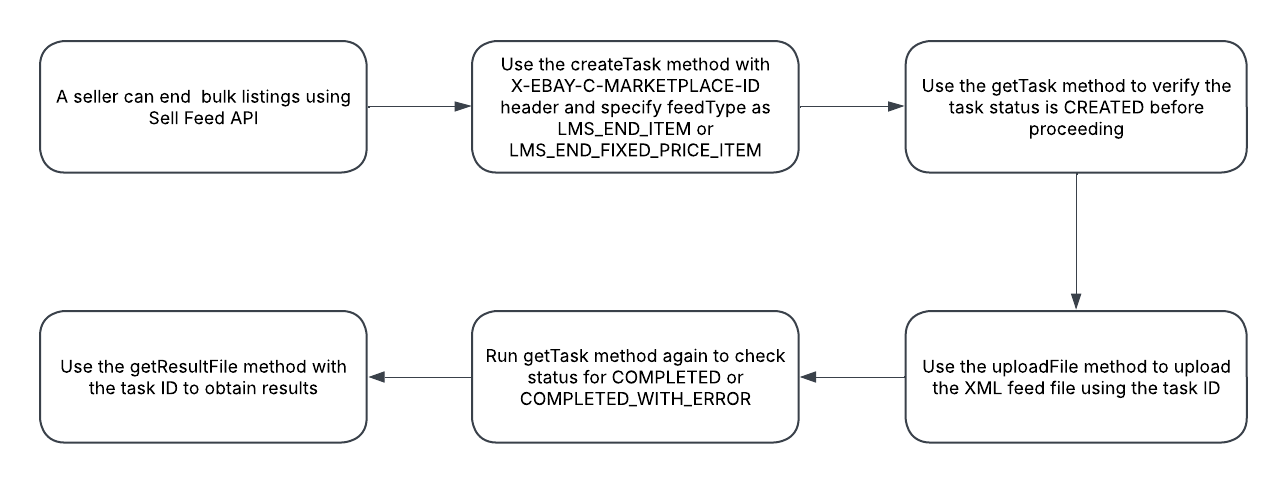
Here are the necessary steps to take in the Sell Feed API to end multiple listings:
- Stage the task using the createTask method. Use the X-EBAY-C-MARKETPLACE-ID header to set the listing marketplace, and set the feedType value in the request payload to either LMS_END_ITEM or LMS_END_FIXED_PRICE_ITEM. As its name suggests, the LMS_END_FIXED_PRICE_ITEM feed type only supports ending fixed price listings (single and multiple-variations). If the call is successful, the getTask URI for the task is returned in the Location response header.
- Use the getTask method to check the status of the task. The value returned in the status field should be CREATED. Proceed to the next step if you see this value.
- Use the uploadFile method to upload the LMS_END_ITEM or LMS_END_FIXED_PRICE_ITEM feed file.The same task ID returned in createTask method is used as a path parameter for this method. The uploadFile method does not have a request payload, but you will be uploading an XML data file. See the uploadFile reference documentation and/or the Create the data file topic for more details on how to create and upload the XML file. If the uploadFile call is successful, an HTTP status code of 202 Accepted should be returned. Uploaded files are processed asynchronously, so it may take some time to process the file based on the size of the file.
- Run another getTask method (using the same task ID) to check status. This time, you will want to see a value of COMPLETED or COMPLETED_WITH_ERROR. COMPLETED is preferable over COMPLETED_WITH_ERROR, as the latter generally indicates that one or more listings were not ended successfully. Also check the uploadSummary container. If all listings were successfully ended, you should see a value of 0 in the uploadSummary.failureCount field.
- Use the getResultFile method (using the same task ID as a path parameter) to retrieve the file that indicates the results of the end listings task. A completely successful task should show EndTime values for the successfully ended listings. For any listings that were not ended successfully, you should see an Errors container that indicates the issue(s) with one or more listings.
Code Samples
Retrieve all inventory items defined in Inventory API
curl -X GET "https://api.ebay.com/sell/inventory/v1/inventory_item?limit=2&offset=0" \
     -H "Authorization: Bearer YOUR_ACCESS_TOKEN"
Retrieve all inventory locations defined in Inventory API
curl -X GET "https://api.ebay.com/sell/inventory/v1/location?limit=20&offset=0" \
     -H "Authorization: Bearer YOUR_ACCESS_TOKEN"
Error Handling
- eBay has a policy where each active listing may only be revised up to 250 times per calendar day, so any API operation that attempts to revise a listing beyond that maximum threshold will fail. The user will need to wait until the next calendar day to make additional revisions.
- An active listing created using the Inventory API cannot be revised using Trading API Revise/Relist calls.
- JavaScript cannot be used in any seller-defined, text-based fields (such as item description) and will lead to an error.
- When using the Sell Feed API, the feed type specified through the feedType field of the createTask method should match the actual object types being uploaded through the uploadFile method.
- There are quite a few revision restrictions for auction listings. Some restrictions start as soon as the item has one or more active bids, and then more restrictions kick in once the auction listing has less than 12 hours before ending. Fixed priced listings also have some revision restrictions, including when the listing has open Best Offers. See the Revise a listing help topic for more information on these restrictions. An error will occur if a Revise call is attempted for a revision that is not allowed.
Best Practices
- Revising a listing generally does not incur eBay fees unless a fee-based option is added such as adding a subtitle or adding a Reserve Price to auction listings.
- As an alternative to using the Trading API sandbox environment, the VerifyRelistItem call can be used to test the validity of the item object in the production environment before that item is actually relisted. This call uses the same logic and validation as the RelistItem or RelistFixedPriceItem calls, but there is no risk of incurring any listing fees.
- For those using Inventory API, the bulkUpdatePriceQuantity is a nice alternative to bulkCreateOrReplaceInventoryItem or updateOffer when a user wants to update just the price and/or quantity for multiple listings.
- The getListingFees method in the Inventory API can be used against up to 250 unpublished offers to get the expected listing fees.
- Like the names imply, the createOrReplaceInventoryItem and bulkCreateOrReplaceInventoryItem methods will do a complete replacement of inventory item objects, so you must pass in all applicable fields even if the values of those fields are not changing.
- If you need to revise any active listing with a createOrReplaceInventoryItem or a bulkCreateOrReplaceInventoryItem method, you may want to consider using the bulkGetInventoryItem, getInventoryItems, or getInventoryItem methods to retrieve the current state of the inventory item object(s) and then modify as needed with createOrReplaceInventoryItem or bulkCreateOrReplaceInventoryItem methods.
- Consider using the withdrawOffer method to end an active listing instead of the deleteOffer method if there’s a chance that you’d want to publish the offer again at a later date. The deleteOffer method will end an active listing and it will delete the offer object associated with the listing.
- Use the withdrawOfferByInventoryItemGroup method to end a multiple-variation listing. The inventory item group object itself and each offer associated with each variation in the group is not affected by this action other than all offers going from the PUBLISHED state to the UNPUBLISHED state.